
Agentic Coding in Xcode with Gemini CLI
Build apps with AI assistance in Xcode using Gemini CLI
With Xcode 26.3 - released on February 3rd, 2026 - Apple enters the era of agentic coding. Welcome, Apple - siriously!
In the initial release, Claude Code (Anthropic) and Codex (OpenAI) are directly integrated, allowing developers to experience agentic coding directly inside of Xcode. Apple’s documentation provides a good overview of how to use these features - they even created a walkthrough video, linked right from the splash screen (that’s a first).
In addition to using these coding agents within Xcode, you can also use any coding agent with Xcode 26.3 via the MCP bridge Apple provides. The documentation explains how to connect Claude Code and Codex, but it doesn’t show how you can connect other agents.
In this article, I’m going to show you how you can connect Gemini CLI to Xcode 26.3 and use agentic coding to build your apps.
Prerequisites
To use agentic coding in Xcode via Gemini CLI, you need:
- Xcode 26.3
- Gemini CLI v0.27 or later
My favorite way of installing Xcode is Xcodes - it provides a graphical UI for installing and managing multiple versions of Xcode, and it downloads much faster than the download via the App Store.
To install Gemini CLI, run this command:
npm install -g @google/gemini-cliMake sure you have Gemini CLI 0.27.0 or above installed, as it contains a patch that works around a known issue in the response format Xcode’s MCP bridge returns.
Run this command to see the version of Gemini CLI you’ve got installed:
gemini --versionEnabling Xcode’s MCP server
Before you can connect any coding agent to Xcode, you need to enable Xcode’s MCP server.
- Launch Xcode 26.3
- Open the settings dialog (
CMD + ,) - Navigate to the Intelligence section
- In the Model Context Protocol section, enable Xcode Tools
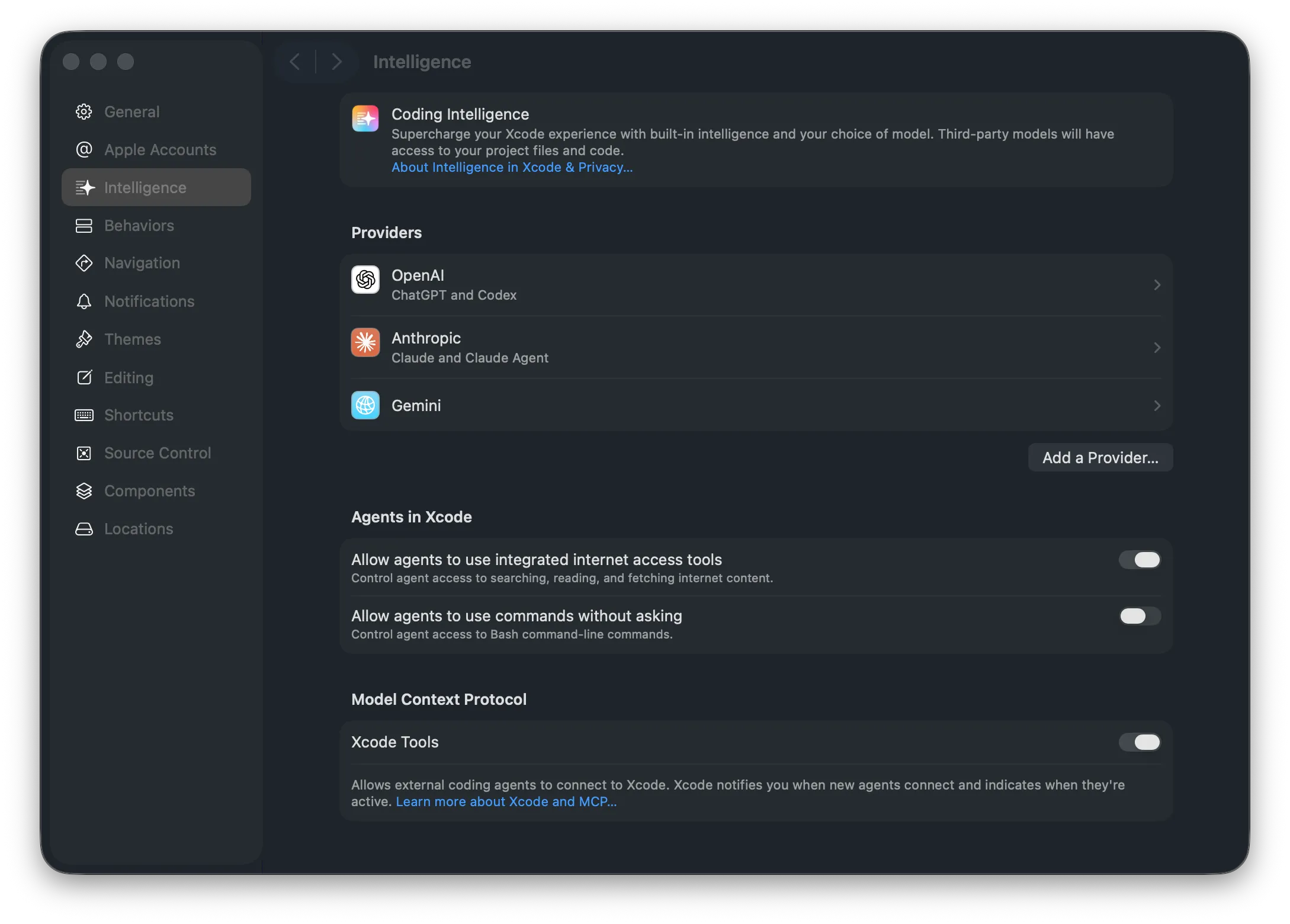
Connecting Gemini CLI to Xcode
To enable Gemini to use Xcode’s MCP server, you need to add it to Gemini’s configuration. You can either do this globally, or per project. I recommend doing this on a per-project basis - you will see why in a minute.
At the root folder of your project, run the following command to add Xcode’s MCP server configuration:
gemini mcp add xcode-tools xcrun mcpbridgeThis will add the following configuration to .gemini/settings.json:
{
  "mcpServers": {
    "xcode-tools": {
      "command": "xcrun",
      "args": ["mcpbridge"]
    }
  }
}
Starting an agentic coding session
You’re all set to use Xcode and Gemini CLI for agentic coding:
- First, launch Xcode
- Then, launch Gemini CLI in the root of your project folder
- Xcode will ask for your permission to allow Gemini CLI to access its MCP server
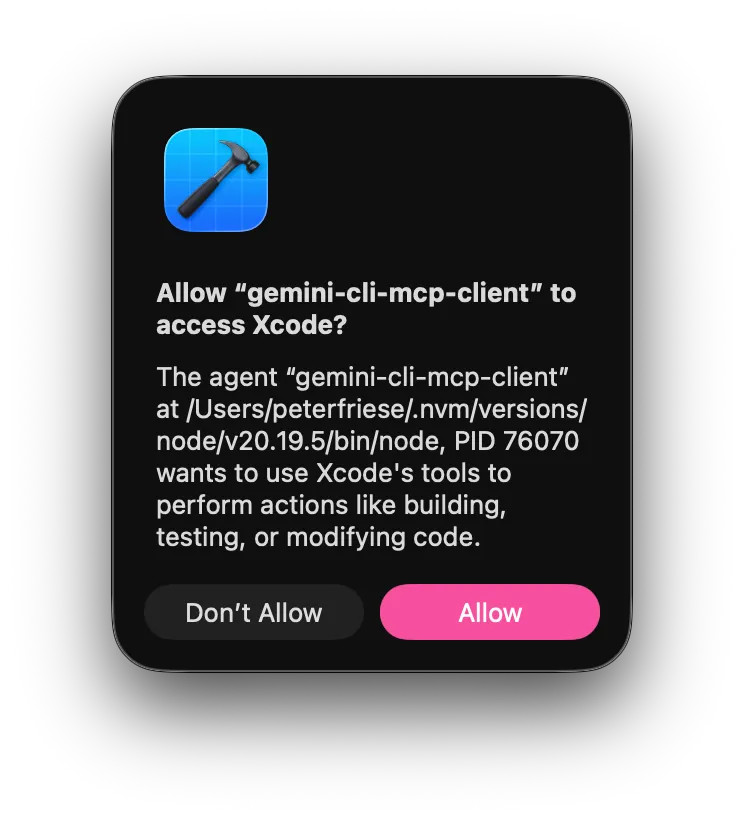
This dialog will pop up every time you run Gemini CLI with the Xcode MCP server enabled, and this is the reason why I recommend configuring Xcode’s MCP server on a per-project basis. No need to have Xcode ask for your permission if you’re working on a project that doesn’t even contain an Xcode project.
To see the list of available tools, you can use the /mcp list slash command:
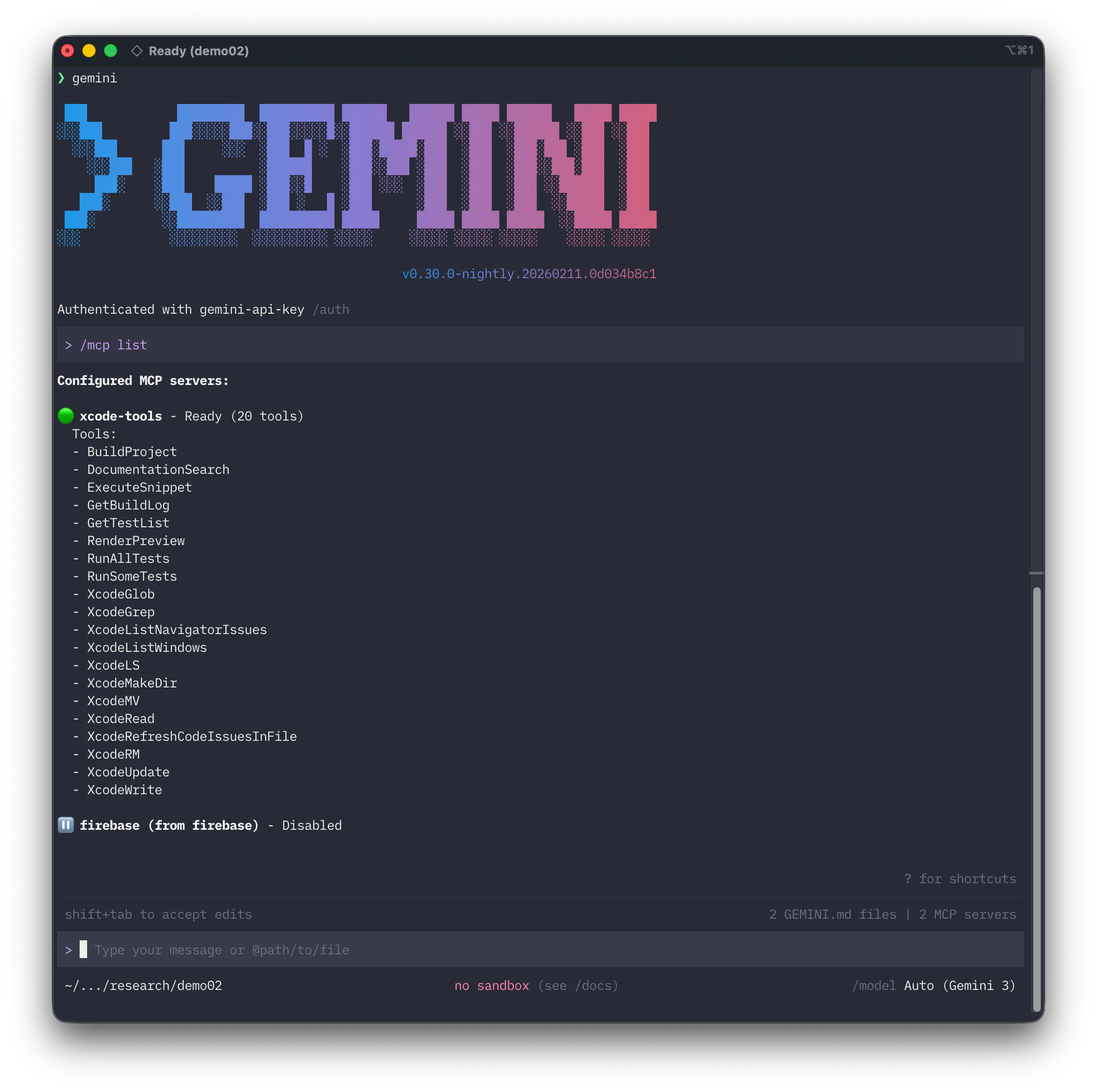
For a detailed description of the tools, you can use /mcp desc:
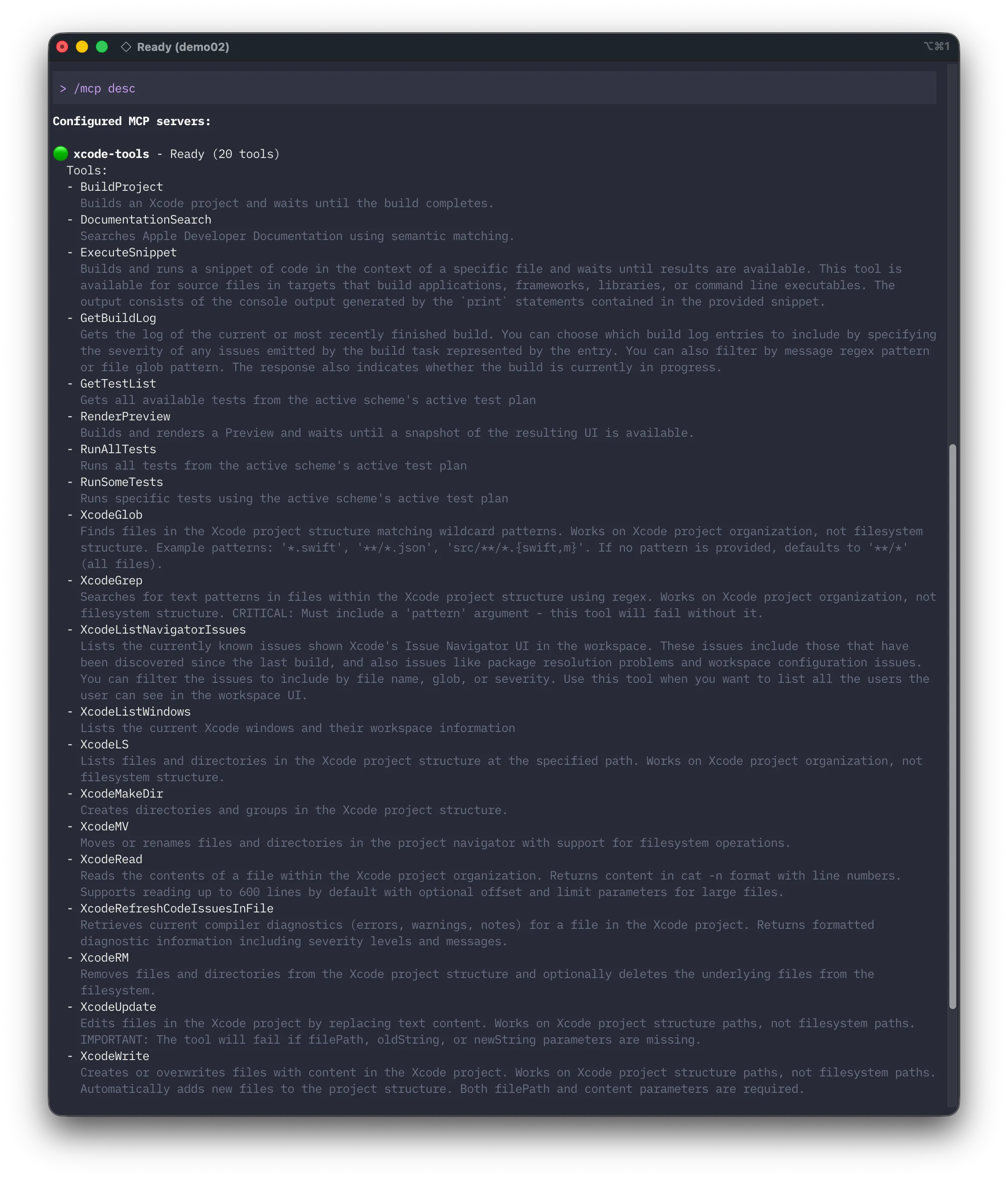
Unfortunately, Xcode’s MCP server doesn’t support creating new projects, so you’ll have to do that manually from inside Xcode.
Let’s build something cool!
Here is a project you can try out:
- In Xcode, select File > Project… to create a new project
- Select iOS > App , and click Next
- Choose a product name for your app (I chose
Newtons Apple) - Click Next and save the project
- Now, open your terminal and navigate to the root folder of the Xcode project:
cd ~/Documents/Newtons\ Apple- Connect Gemini CLI:
gemini mcp add xcode-tools xcrun mcpbridge- Launch Gemini CLI:
gemini- Confirm the Xcode MCP server permission
- Paste the following prompt:
Replace the current view with a SpriteKit scene integrated into SwiftUI. I want to create a physics playground. The text 'Hello World' should be a static rigid body in the center. When I tap the screen, spawn random fruit emojis (🍎, 🍌, 🍇) that fall from the top and bounce off the text. Add a button at the bottom labeled 'Antigravity' that, when held, reverses gravity so the fruits float upward.And now, observe Gemini CLI communicating with Xcode via the MCP bridge to build this emoji physics playground. The first version of the code might still contain bugs, but the agent will figure this out by building the app and fixing any compile errors that Xcode reports.
The result should look similar to this:
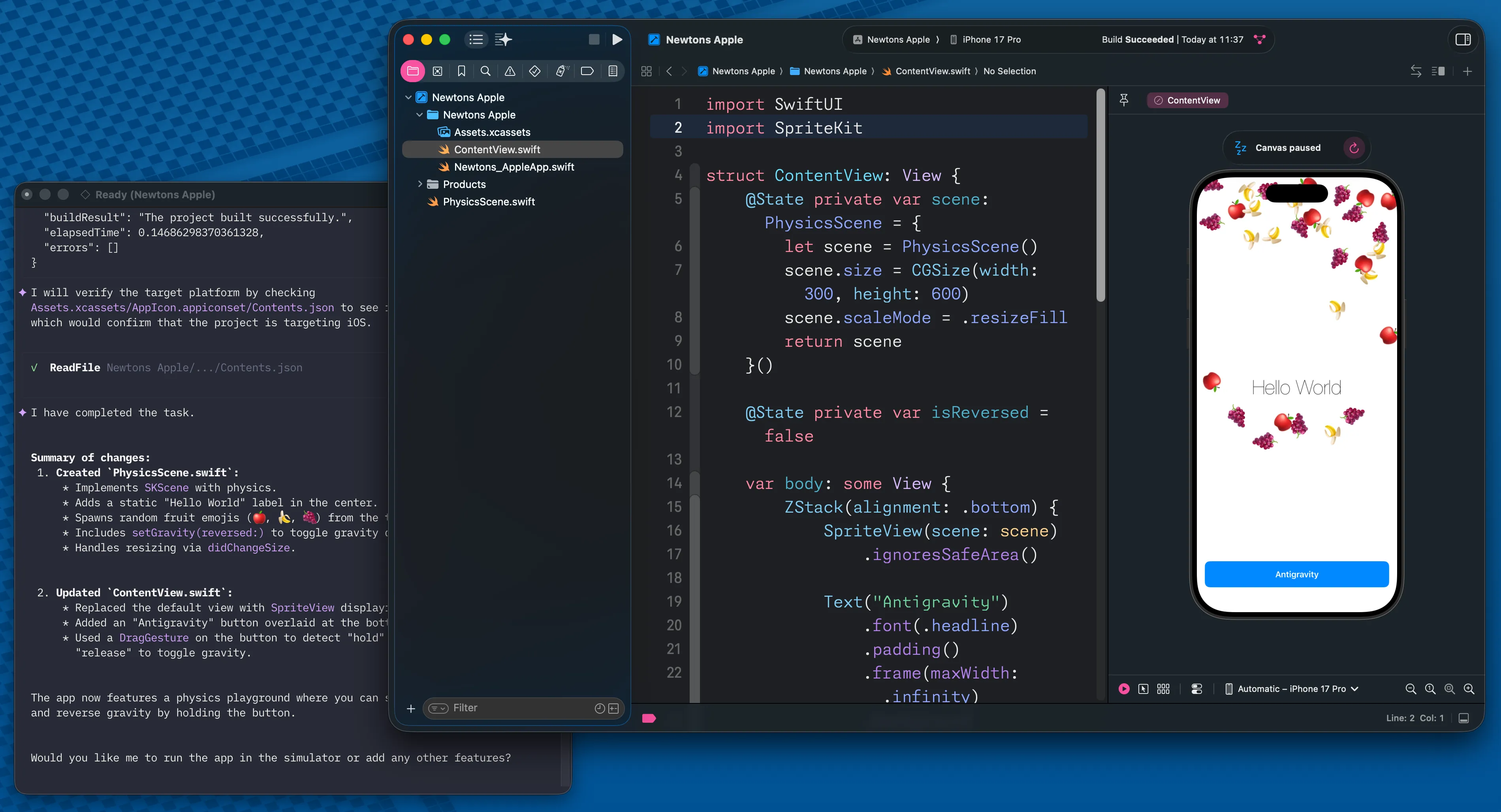
You can interact with the app inside the Xcode Preview (or run it on a Simulator or a physical device) - just tap somewhere on the screen to spawn a new emoji to drop down. You can use the Antigravity button to cancel gravity and make the emojis fly up in the air.
Go give it a try, and play around with it! If you built something cool, let me know!

Apple Foundation Models: Hybrid AI with Dynamic Profiles
Have your cake and eat it, too

Turn Your Photos Into Miniature Magic with Nano Banana
Build stunning image generation apps in iOS with just a few lines of Swift

Reverse-Engineering Xcode's Coding Intelligence prompt
A look under the hood
Extracting structured data from PDFs using Gemini 2.0 and Genkit

Understanding SwiftUI Preferences
SwiftUI Parent / Child View Communication